Approval workflows: library and builder
Activate only when every step resolves eligible approvers, conditions are coherent and timeout behaviour is explicit.
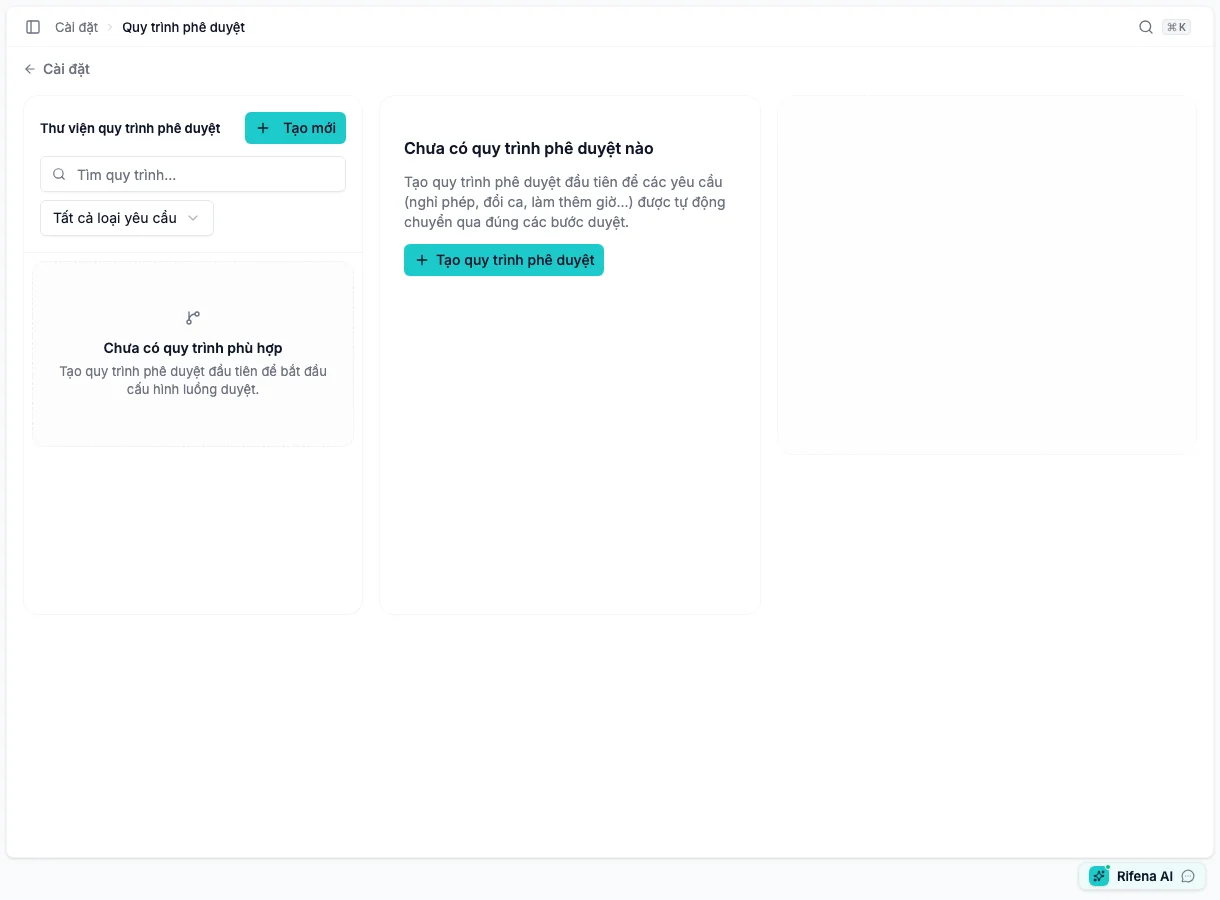
Screen layout
Open Approval workflows in Rifena →
- Library: search, filter, select or create a definition.
- Canvas: source request → approval steps → outcome.
- Inspector: details, conditions, activation and fallback.
- Step editor: approver source/value, decision mode, skip condition, timeout, escalation and delegation.
- Readiness summary: blockers before activation.
With no definitions, the library shows an empty state and a create action. This is expected without an error. Start with one real workflow, not many empty definitions.
Create a workflow
- Choose Create workflow.
- Enter a name, choose the business resource and set priority. Current resources include leave, overtime, payroll run, payment, shift change, tax exemption, component override, employee event, advance, expense claim and KPI score.
- Add applicability conditions when needed.
- Add at least one approval step.
- Choose approver type and value.
- Configure mode, skip condition, timeout, escalation and delegation only when required.
- Review canvas and readiness.
- Choose Save draft; the record remains Inactive. Activate only after blockers are cleared.
Step actions
- Add
- Appends another decision to the end of the current route; its approver must resolve at runtime.
- Edit
- Changes approver source, mode, condition or timeout behaviour.
- Move up/down
- Reorders only while the definition is Inactive; deactivate and save before arranging a different route.
- Delete
- Removes a step from the definition without erasing completed request history.
- Delegate
- Allows an eligible person to replace/assist at the current step; permission and scope still apply.
State and save behaviour
- Inactive: a saved definition that remains editable and reorderable; it accepts no new requests.
- Active: requires valid steps and mandatory conditions.
An inactive save is not applied. Verify Active and run a representative request.
Approvers and fallback
At decision time, each recipient must be active and hold the domain permission and data scope. Domain-decision resources use a safe fallback and cannot enable auto-approval when nothing matches. Other resources can expose auto-approve if no workflow matches; enable it only as an explicit business decision, never to hide a permission or resolver defect. Payroll and KPI must not self-approve just because no approver was found.
Verify after activation
- Submit a representative request as a requester.
- Confirm it reaches the correct first approver.
- Test one approve and one reject branch.
- Test both matching and non-matching conditions.
- Confirm domain changes happen only after a valid decision.
- Clean up test data according to the domain process.
When an action is missing
- Page absent: no workflow management permission.
- Empty library: no definitions; create one.
- Cannot activate: resolve readiness blockers.
- Cannot reorder: the definition is Active; make it Inactive, save, then reorder. Review pending requests separately before changing the route.