Organisation and automatic codes
Organisation
Screen: System → Settings → Organisation
This screen manages the logo, organisation name, phone, address, timezone, minimum-wage region and read-only system information.
Safe update
- Verify the selected organisation.
- Change only fields backed by confirmed information.
- Use a supported PNG, JPG or WebP for the logo.
- Treat timezone as a cross-product setting that affects dates and times.
- Choose Save and wait for success.
- Reload and confirm the value remains correct.
Country cannot change after organisation creation. Do not choose an approximately correct wage region to complete the form; leave it unselected when the information is not confirmed and the workflow permits.
Automatic codes
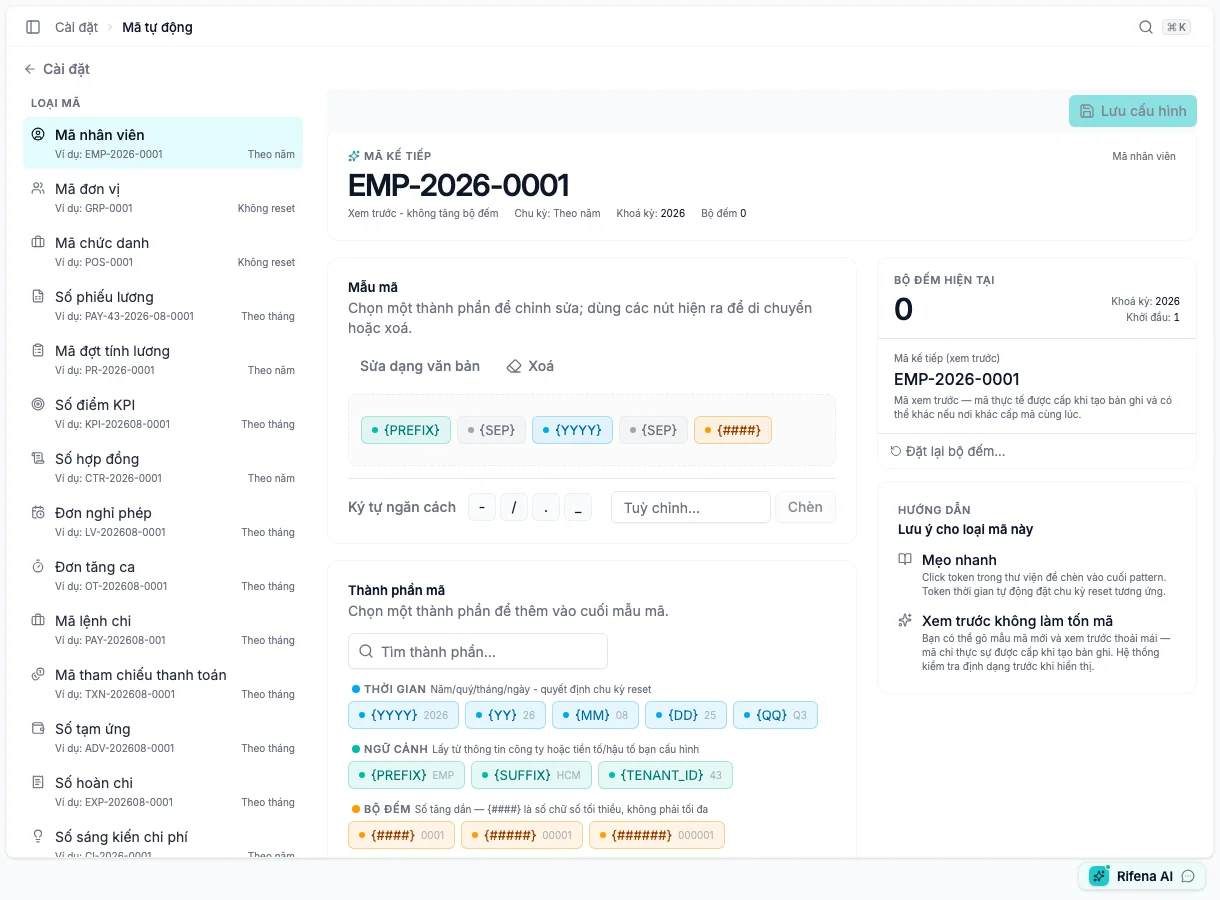
Screen: System → Settings → Automatic codes
Automatic codes cover entities with a real issuance flow, such as employees, groups, positions, payslips, payroll runs, contracts, leave, overtime, payments, advances, expenses and training. The visible list can change when a new issuing flow is introduced.
Edit a pattern
- Select the exact code type.
- Use the pattern canvas or raw mode when offered.
- Configure prefix, suffix, separator, number padding and date/time tokens.
- Inspect current and next-code Preview.
- Save and reopen the same type.
Rifena can infer reset frequency from year/month/day tokens. Do not add a time token merely for appearance if it changes the intended counter reset.
- Activate
- Allows the configuration to issue new codes.
- Deactivate
- Preserves configuration/history but stops new use.
- Reset counter
- Requires a reason and checks collision with issued codes.
- Preview
- A prediction from current configuration, not an issued code.
A missing type normally means it is not currently exposed or has no live consumer. Do not substitute a similar type.
When editing is unavailable
- Organisation is read-only: the account lacks update permission.
- A code type is absent: it is not exposed for current issuance.
- Reset is blocked: missing reason, locked configuration or collision risk.