Attendance issues
Choose the closest symptom. Make one evidence-based change, then inspect the result; do not create extra attendance entries as a test.
Role and access: employees troubleshoot their own events in Employee portal;
HR or managers correct only the assigned employee scope. Operational review is
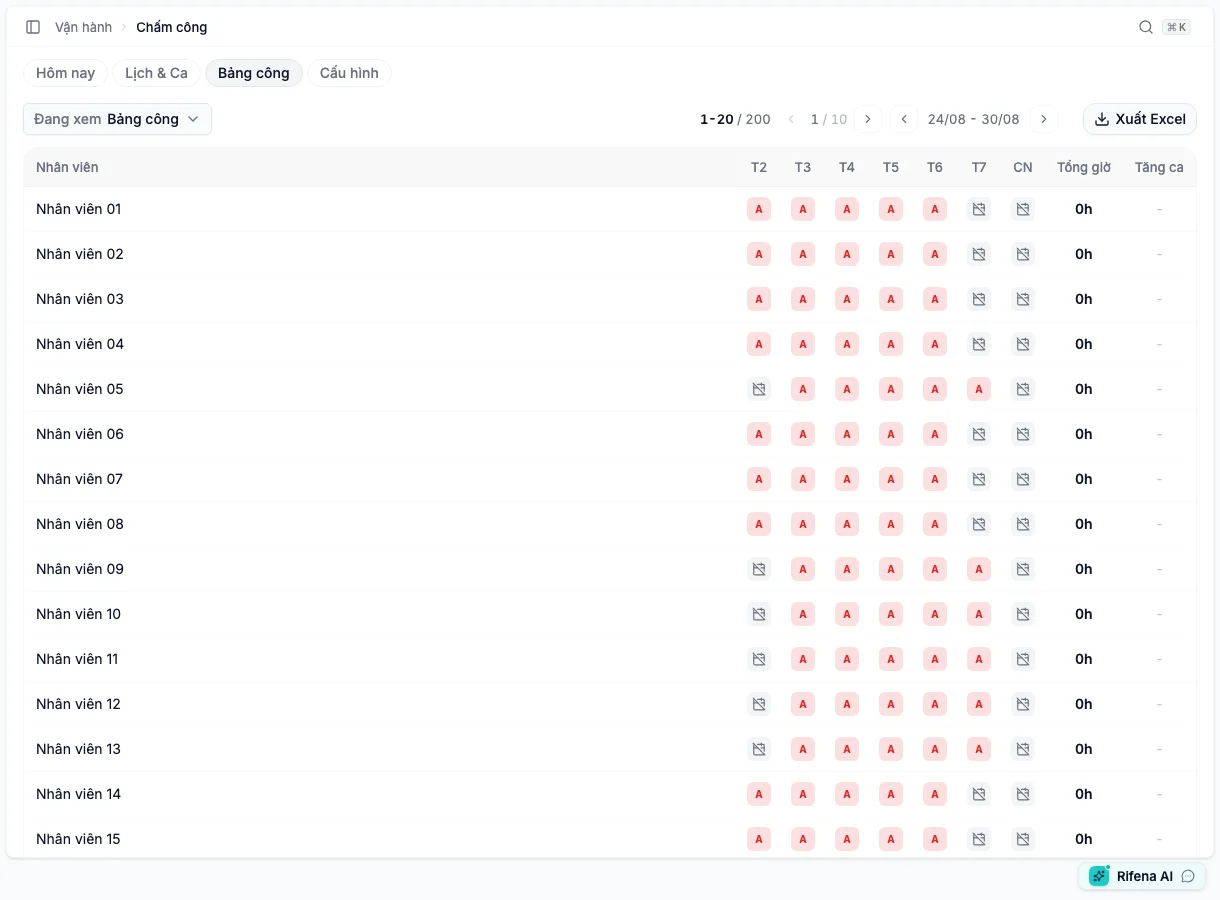
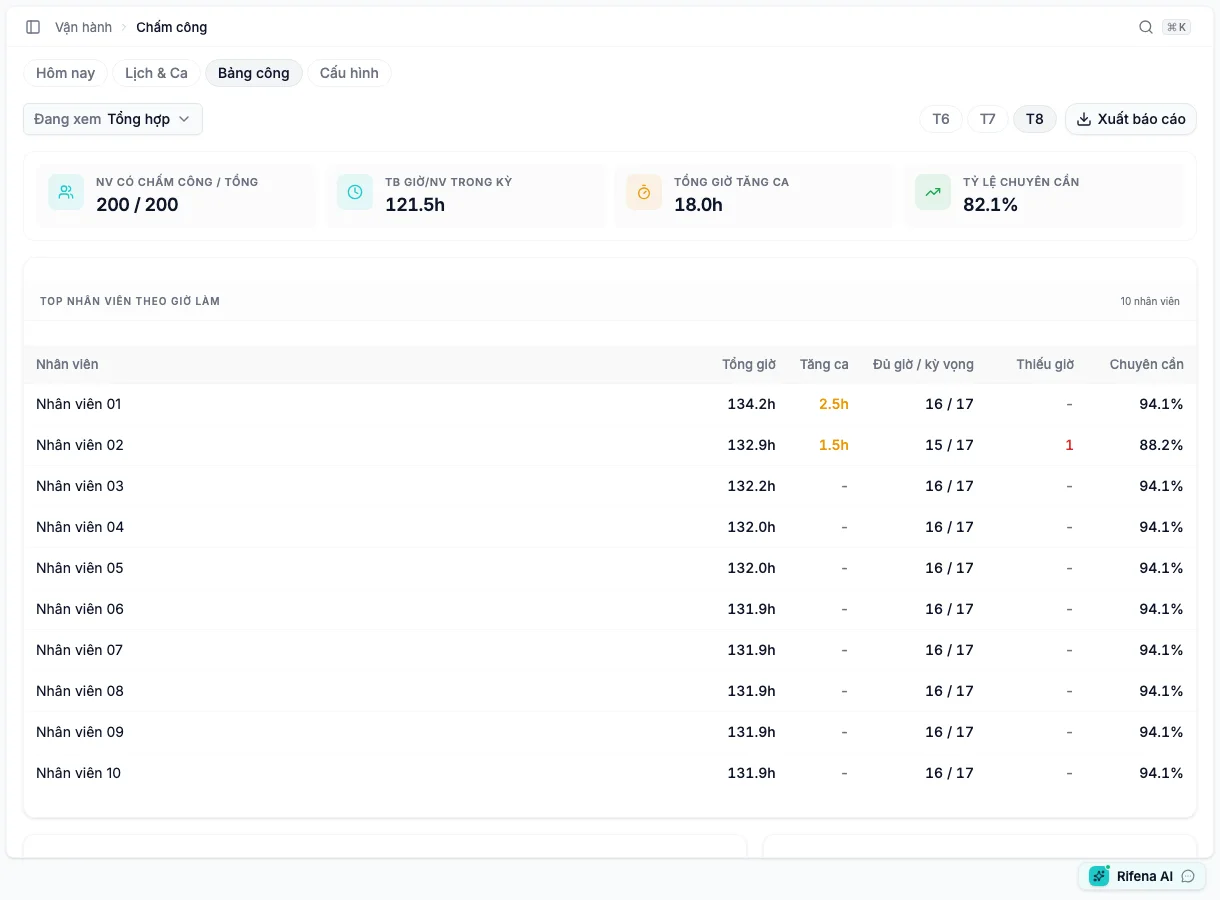
at /operations/timekeeping, with Timesheet, Overtime, Summary, and
Settings views; period close or reopen is at /settings/periods.
Check-in or Check-out is missing, or the action is blocked
- The correct organisation and workday are selected.
- You have a shift or work schedule covering the current time.
- The requirement strip is not asking for location, a photo, or another condition.
- The browser has the requested location, camera, or notification permission.
Allow the required browser permission, then refresh once. If the schedule or workplace is wrong, ask HR to correct the shift or add the appropriate flexible arrangement. Do not disable an organisation-wide policy to solve one employee's issue.
Expected result: the screen offers the action appropriate to the current shift state and records the time clearly.
Still not working? Note the date, shift, displayed action, and exact blocking message. Do not send location or face images unless requested through a secure channel.
A policy looks configured, but an event still lacks evidence or is blocked unexpectedly
- Which policy the employee receives from organisation, group, shift, work-arrangement, or employee assignment.
- Whether the actual source is Web, Mobile, Kiosk, Device, or Manual and which requirements are enabled for that channel.
- Whether geofence, IP range, and camera/GPS permission are ready for that clock source.
- Whether the condition warns or rejects: inaccurate-GPS warning still records an event; required photo/GPS or reject-outside-area can block it.
Open Operations → Timekeeping → Settings → Attendance policy, select the effective policy, and compare each channel summary; then inspect Clock assignments. Prepare the missing supporting data or correct the narrowest assignment. Do not rely on WiFi as an active control; the current device rule requires an identifier but does not prove that the device is approved.
Expected result: the employee supplies only evidence required by the effective policy; warnings remain reviewable and reject conditions block only the intended cases.
Still not working? Provide policy name, source, assignment scope, enabled requirements, and exact message. Do not send a face image, precise location, or full network range through an unapproved channel.
An attendance record has a missing or incorrect time
- The employee, date, period, and time zone are correct.
- The record is missing Check-in or Check-out, or is matched to the wrong shift.
- The event appears under Today but has not yet appeared in Timesheet → Viewing: Timesheets.
HR confirms the actual time with the employee or manager, then uses the appropriate action: Adjust timesheet, Manual check-in, or Manual checkout. Enter a specific correction reason, save, and reopen the same date.
Expected result: check-in, checkout, and total time are correct on one record, with a visible correction trail.
Still not working? Stop adding events. Prepare the employee, workday, expected correct time, and an image containing only the relevant record.
HR selected Close attendance, but the period is not Attendance closed
- The period has ended and is currently Attendance open.
- The close dialog lists unresolved attendance, leave, overtime, or holiday-work records.
- The source screen uses the correct period and employee scope.
Open each data group named by the dialog and resolve every unfinished or pending item. Return to System → Settings → Payroll periods and close once more. Do not create a payroll run to bypass the close condition.
Expected result: the period shows Attendance closed and becomes available when creating an eligible payroll run.
Still not working? Record the period name and the complete checklist from the close dialog. Do not bulk-edit records before identifying the unresolved row.
A closed attendance period cannot be reopened
- The intended period and correction reason are confirmed.
- The related payroll run is Draft, Pending approval, Approved, or Paid.
- The effect on figures and people who received a result has been assessed.
When Reopen attendance remains available, read the warning and confirm only when you are ready to recreate the affected payroll run. If an approved or paid payroll run blocks reopening, stop and use the company's approved adjustment path for a later period.
Expected result: the period returns to an editable state and is closed again, or there is a clear adjustment that preserves confirmed history.
Still not working? Send Support the attendance period, its state, the related payroll-run state, and affected employee scope.
Hand off an unresolved case
Give the attendance owner the exact period, employee, date, symptom, visible message, and one change already attempted. Mask unrelated names and never send face, location, or payroll data through an unapproved channel.
For the full journey, see Monthly attendance.