Review attendance violations
The flow is complete when scoped cases are verified, each decision has a reason and statistics reflect state; no automatic wage deduction occurs.
Role and access: compliance HR may work across all three tabs; an assigned manager may receive only the scoped Violations queue. Missing tabs are an access boundary, not evidence that the page is incomplete.
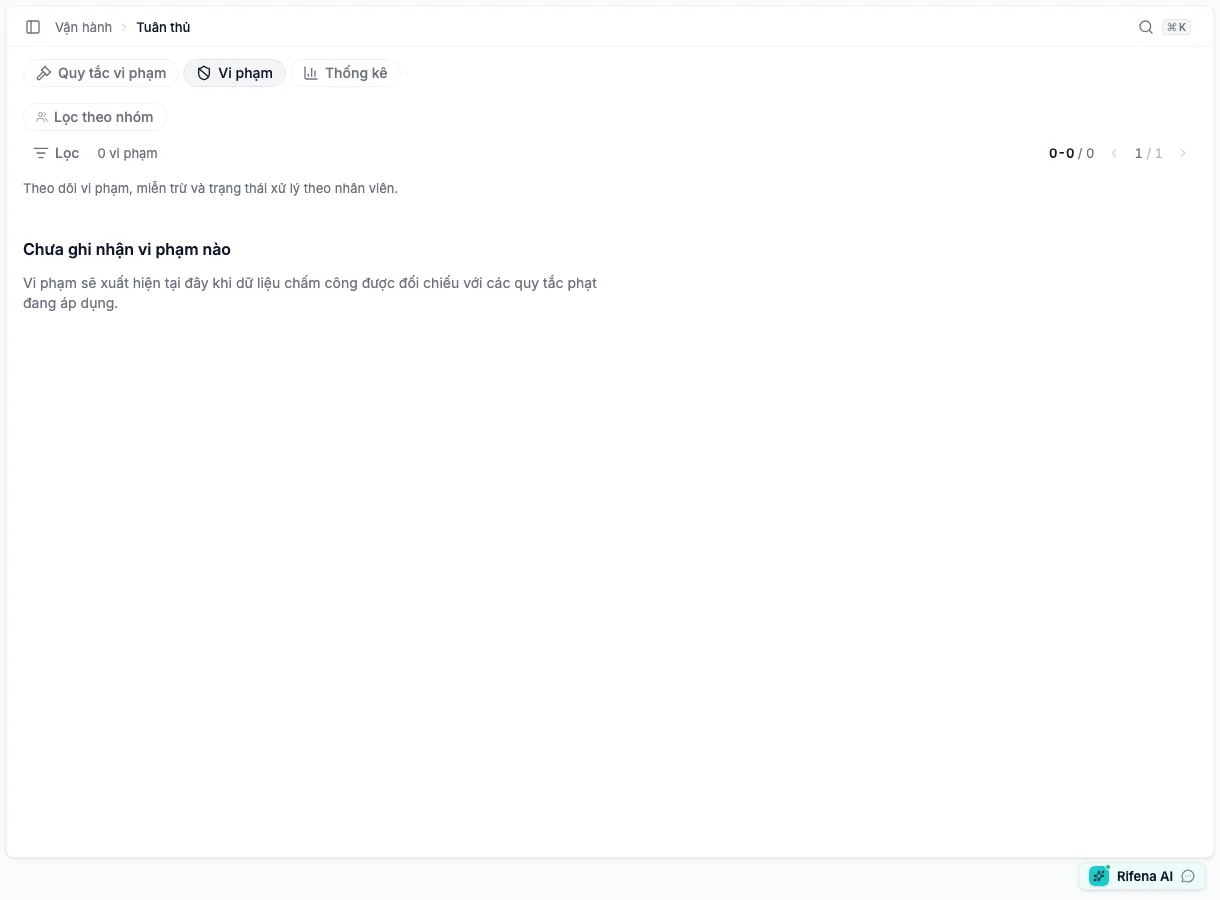
Product route: /operations/compliance. Depending on effective permission,
the tab bar shows Violation rules, Violations, and Statistics, and
redirects to the first view the account can open.
Before starting
- Source attendance is processed through the review date.
- Shift and violation rules apply to the intended scope.
- The reviewer can see violations for the correct groups.
- A case directly involving the reviewer is routed to another authorised person when separation is required.
1. Review rule configuration
An authorised administrator opens Violation rules, filters active rules and checks name, type, grace, reference cap and accumulation, then opens Handling levels for minute thresholds, reference amounts and points. Activate a new rule only after a representative test. A case reviewer without configuration responsibility can skip this step.
2. Filter the work queue
Open Violations:
- confirm the organisation and the account’s effective scope;
- filter Pending;
- narrow by type when needed;
- inspect employee, date, shift, minutes and source attendance.
Also check flexible arrangements, approved leave, attendance corrections and manager notes. Do not decide from minutes alone.
3. Choose an outcome
Waive
For valid evidence such as a confirmed source correction, service incident or approved exception, choose Waive, enter a specific reason, save and verify Waived.
Included in payroll
This is a downstream payroll state, not a manual transition button on the current Violations tab. When a payroll step should have received the case, recheck the same violation and related period. Do not create a payroll adjustment merely to force the state, and do not interpret it as an automatic deduction.
Delete
Delete only a Pending record that should not exist under the rule and only when the interface permits. Waiver is better for a real exception whose history must remain.
4. Reconcile statistics
An authorised user opens Statistics, which always covers the last 30 days, compares total and breakdown by state/type, and records account scope. For zero, verify group scope, active rules and source attendance before concluding there are no cases.
5. Hand off before period close
- Every remaining Pending case has an owner.
- Pending violations do not automatically block attendance close, but remain in the compliance ledger.
- Payroll is told that amounts are reference-only.
- Do not alter attendance merely to reduce violation statistics; correct only a genuinely wrong source record and retain the reason.
The journey is complete when
- Organisation, groups and dates are correct
- Every decision has evidence and reason
- Remaining pending cases have an owner
- Statistics are interpreted within scope
- No automatic wage deduction uses a reference amount