Compliance: rules, violations and statistics
Use Compliance to detect and process time exceptions with an audit trail. Do not use it to impose an automatic fine or wage deduction.
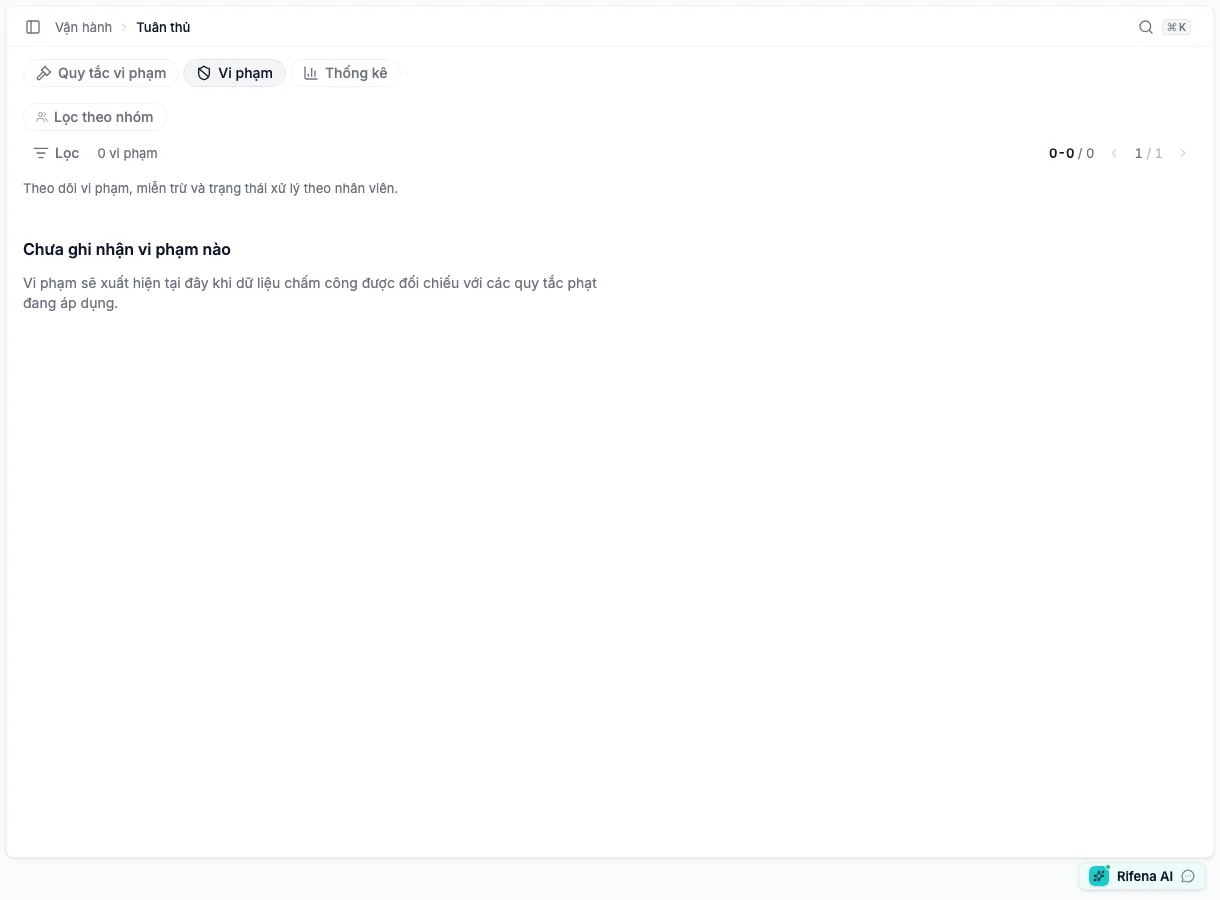
Permission-filtered tabs
Opening a link to a forbidden tab may redirect to Violations. This is expected when the person’s job only requires scoped case handling.
Violation rules
A rule defines what counts as a violation; it does not decide an employee relations outcome for a manager.
Create or edit
- Enter a name and choose late arrival, early departure, missing hours or absence.
- Set grace before Rifena records a violation.
- Set the per-incident reference amount cap, or explicitly choose No cap.
- Choose whether the rule is cumulative and save it.
- Open Handling levels and add each minutes, point-deduction and reference amount threshold.
- Activate only after a representative test.
- Activate
- Allows the rule to detect new cases from the appropriate point.
- Deactivate
- Stops new application while preserving historical cases.
- Delete
- Only when state and retention constraints permit; prefer deactivation when history matters.
- View detail
- Verify type, levels and state before editing.
Violations
The server has already limited rows to the account’s scope. Filter the tab by type or state, then open the relevant case. Important states are Pending, Waived and Included in payroll. The Violations tab displays Included in payroll after a downstream payroll step records it; there is no manual action here to force that state.
Waive with evidence
- Verify employee, date, shift and source attendance.
- Choose Waive when there is valid evidence.
- Enter a specific reason.
- Save and reopen the case to verify state and reason.
Only a Pending case can be deleted when the interface permits. Do not delete waived or included history to make statistics look cleaner. Included in payroll does not mean the reference amount became a deduction; any income change remains a separate lawful, approved payroll operation.
Statistics
Statistics uses the last 30 days and shows totals and breakdowns by state/type within current scope. For an empty result, verify organisation, group scope, active rules, processed attendance and whether any cases were created in that range. Zero within a scoped account is not proof that the entire organisation has no violations.
When a tab or action is missing
- Only Violations: the account cannot view rules/statistics; common for group managers and employees.
- No Create rule: view permission without management permission.
- No Waive: the case is not pending or is outside scope.
- No Delete: the case has passed the deletable state.