Time policies: screens and states
Configure work patterns → holidays → shifts and rules → leave, then run a small representative test before wider use.
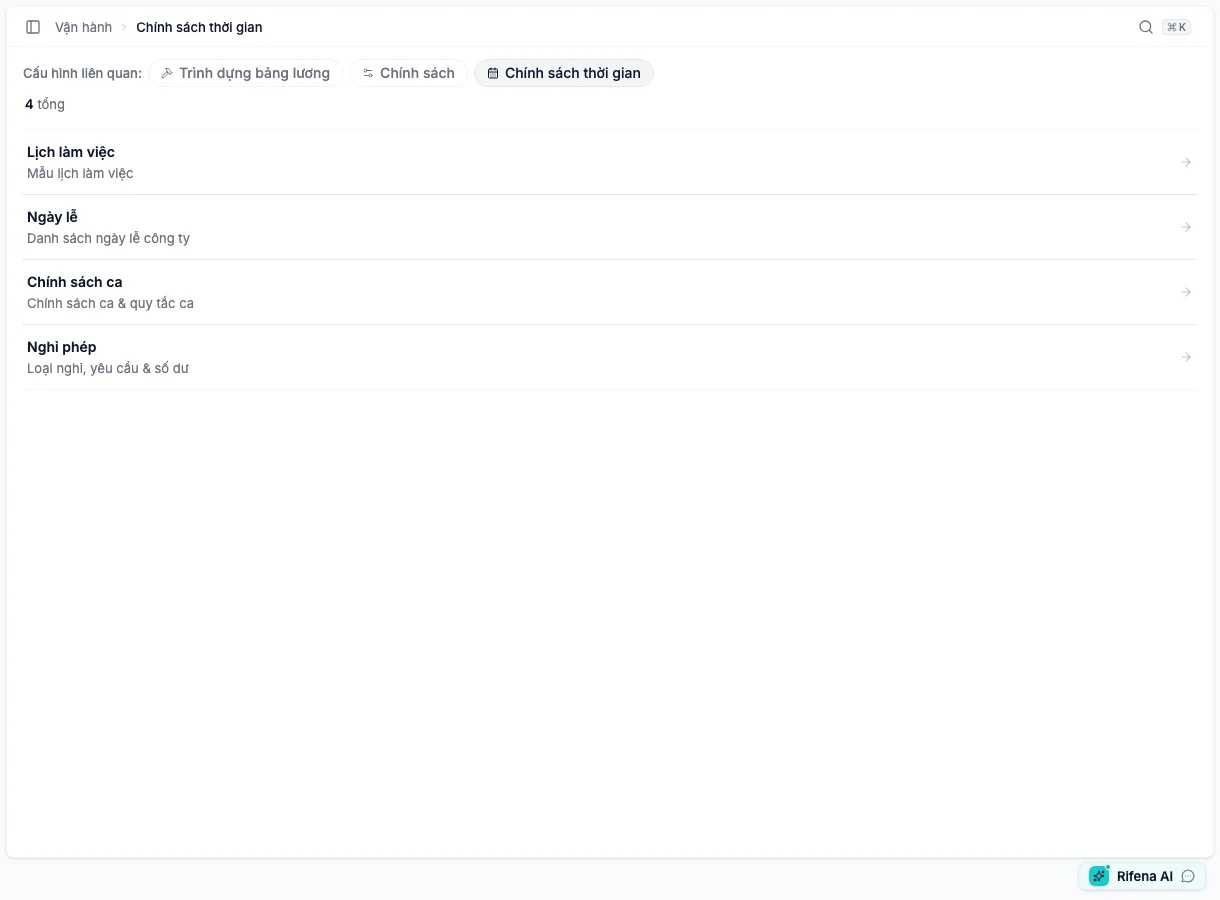
Work patterns
Open the Time policies overview →
A pattern defines working and rest days for a working week.
- Create: enter a name, working days, description and optionally make it the default.
- View / Edit: verify the weekly pattern and default state before changing it.
- Delete: only when no employee still uses it; Rifena can block deletion while assignments remain.
- Default: changing the default does not rewrite every historic schedule.
Holidays
Start in one of two ways:
- Copy standard calendar — choose the year and copy all or selected dates; review any row that could not be copied.
- Add manually — for organisation-specific dates or custom rules.
A holiday can contain a name, date range, type, paid state, holiday-work multiplier, time-off-in-lieu requirement and deadline. Scope may cover all people, selected groups or exclude specific employees.
After saving, filter by the same year and state. This calendar supplies the choices in Operations → Timekeeping → Configuration → Holiday work.
Shift policies
Open the Shift policies card, then use its two tabs.
Shift policies tab
A policy can be organisation-wide or group-scoped and use a normal, overnight or split shift. Each split-shift segment must stay within its own day. Configure a multiplier or fixed allowance only when required and inspect the preview.
- Make default
- Use for the common policy; it does not rewrite all existing assignments.
- Deactivate
- Rifena previews affected future assignments; replace all or remove and reassign as instructed.
- Reactivate
- Returns the policy to eligible choices but does not restore schedules that were removed.
The current screen has no separate hard-delete action. Use Deactivate and resolve affected future assignments in the dialog; the policy and prior history remain traceable.
Shift rules tab
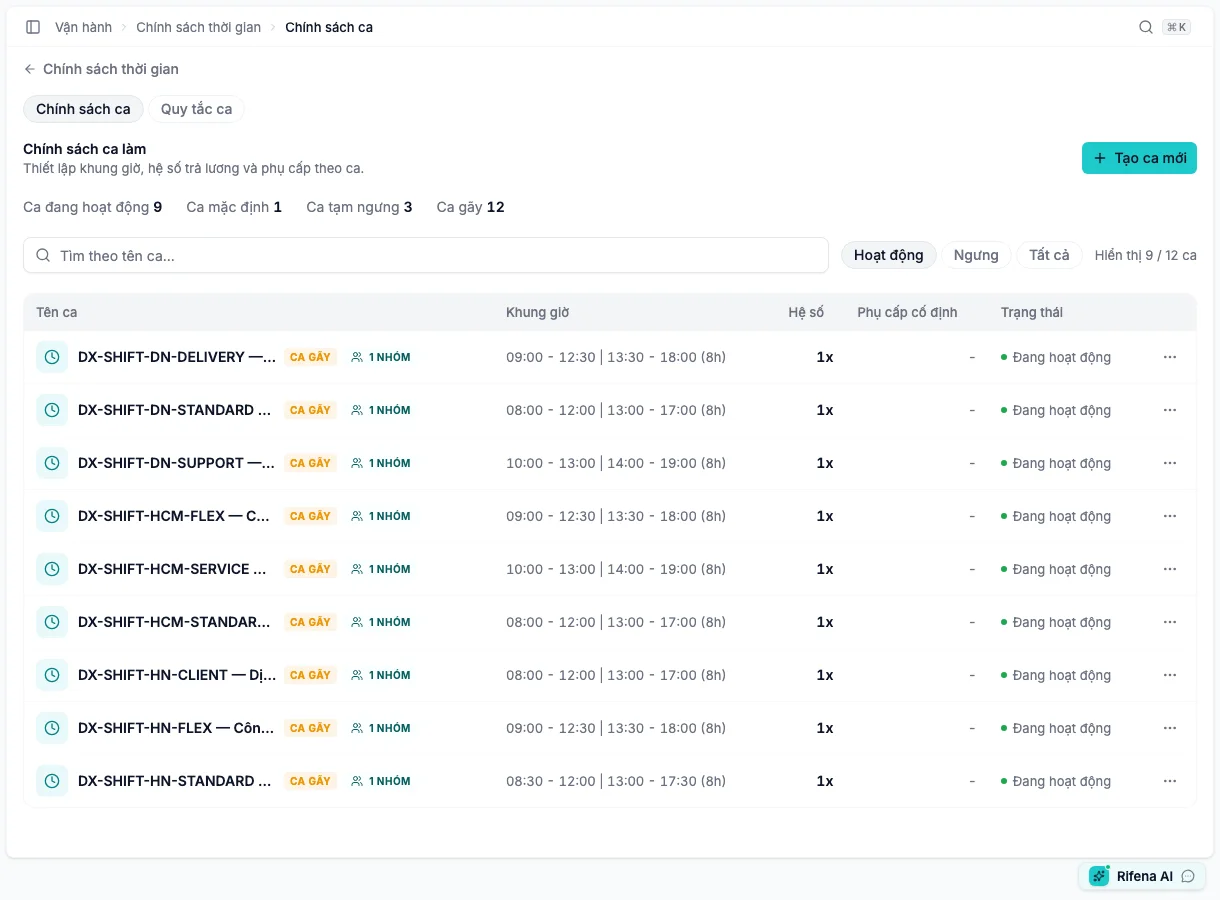
Rules cover same-day shifts, overlapping dates/times, minimum rest, maximum shifts per day/week and early/late clock grace. Use Block when a record must not be saved and Warn when an authorised person may continue after review. You can create or edit a custom rule, or Reset to default. Record the current values before resetting.
Leave
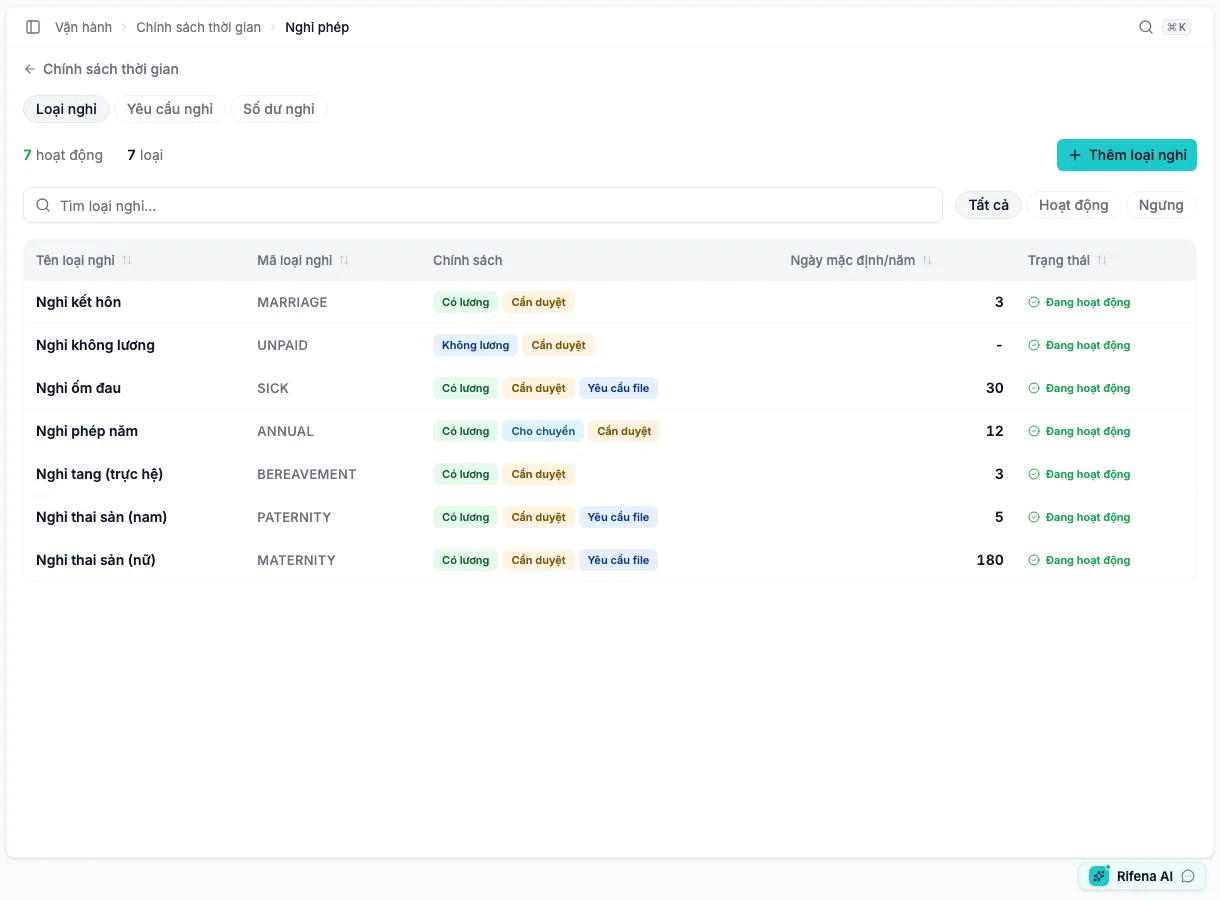
The Leave card has three administration tabs.
Leave types
- Create, view, edit or deactivate a type.
- Configure paid/taxable, approval, attachment, excused-absence and carry-over behaviour.
- Count calendar days or working days.
- Set default days per year, notice and maximum consecutive days.
- An empty organisation can offer standard Vietnam leave types; review them against company policy before use.
Deactivate a type to stop new requests while preserving history.
Leave requests
This is the administration queue, not employee self-service.
- Filter by state, date range or employee.
- Review type, dates, half day, reason, attachments and calculated days.
- Approve or Reject only while Pending and within scope.
- When creating on behalf of an employee, recheck employee, type, dates and half-day choice before submitting. The current administration form has no separate estimate panel; open the saved detail and verify server-calculated days.
Common states are Pending, Approved, Rejected and Cancelled. An owner may cancel when permitted; valid cancellation must release pending balance.
Leave balances
Filter by year, employee and type. A row separates allocation, carry-over, adjustments, used, pending and available days.
For Adjust balance, select Add, Deduct or Correction, enter days and a clear reason, optionally set expiry, save and inspect history. Correct the source request first when it is wrong; do not use an adjustment to hide it.
Where is overtime?
There is no longer an OT policies screen in Time policies.
- Requests and records are under Operations → Timekeeping → Timesheet → Viewing: Overtime plus corresponding self-service/approval surfaces.
- Legal working-time and overtime limits are under System → Settings → Labour rules.
- Shift/holiday multipliers belong to their respective policy; do not create a substitute “OT policy”.
403 or a missing tab
The Time policies overview accepts any relevant view permission, while each detail has its own guard. A person can therefore see the overview but be denied an administration detail. Employees use Personal → Employee portal → Leave.