Timekeeping: all screens and actions
Use this page to choose the correct workspace before recording an event, assigning a shift, correcting time, reviewing overtime or changing clock configuration.
Today
Use this workspace to monitor clock-in and clock-out events for the day and to record an event on behalf of an employee when there is evidence.
Available work
- Filter and review today’s events.
- Choose Record to create a manual event when the account is permitted.
- Choose Input to import or process attendance data using the controls currently available on the screen.
For a manual event, select the employee, Clock in or Clock out, the time and a specific reason. If the effective policy requires a photo, location or geofence, the form shows the corresponding evidence fields.
Schedule & Shifts
Open Schedule & Shifts in Rifena →
Use the view selector in the toolbar to move between two subviews.
- Shift assignment
- Review people and dates; assign a shift/policy and resolve missing or conflicting schedules reported by Rifena.
- Flexible work
- Record work from home, business travel, client-site or field work; track active, cancelled or completed arrangements.
Shift assignment
- Select the correct date range, group or employee.
- Select the employee before the shift; only eligible policies should remain.
- Select a work pattern when required.
- Read the conflict preview. Replace an existing schedule only when the change is intentional and confirmed.
- Save and inspect the affected date again.
If no shift is available, check Operations → Time policies → Shift policies. If work patterns cannot be loaded, an administrator should review permission; do not enter a technical identifier as a substitute.
Flexible work
Choose the type, start/end time and a location when that type requires one. Arrangements cannot overlap. A user can normally cancel their own arrangement only before it starts; HR or a manager must handle an arrangement that has already begun through the appropriate correction flow.
Timesheet
Timesheet does not contain three separate top-level tabs. Open Viewing in its toolbar to switch between:
- Timesheet
- Review clock-in/out, total hours, shift and state by person/day; open details for a justified correction.
- Overtime
- Filter overtime requests, hours and states; approve/reject appears only for an eligible account and state.
- Summary
- Reconcile worked hours, overtime and exceptions before closing attendance.
Overtime
This is the administration queue for overtime records, not an “OT policy” configuration page. Its cards summarise requests, hours, Pending and Approved within the current result set. Use Filter for employee, date range or state; server-side permission scope still limits which rows are visible.
Current states are:
- Pending
- Can be edited, deleted, approved or rejected only with the required permission and scope.
- Approved
- The decision is recorded; approver and date are shown when available.
- Rejected
- Retained with its rejection reason and no longer edited like a pending record.
- Paid
- Consumed by payroll/payment and read-only in this queue.
To add one record, select employee, overtime date, hours and multiplier, then provide a reason that supports review. Before a new record is created, the limit panel can show monthly/yearly hours used, projected usage, remaining capacity, warning/block level and legal reference. Treat this as the effective server check, not something to replace with a spreadsheet total.
Bulk add accepts employee/date/hours/multiplier rows, quick 1.5×, 2× and 3× choices or a custom multiplier, plus a reason per row. A quick multiplier does not establish the day type; verify weekday, rest day or holiday context. If the server returns a labour-rule warning or block, the dialog stays open for review instead of presenting the operation as complete.
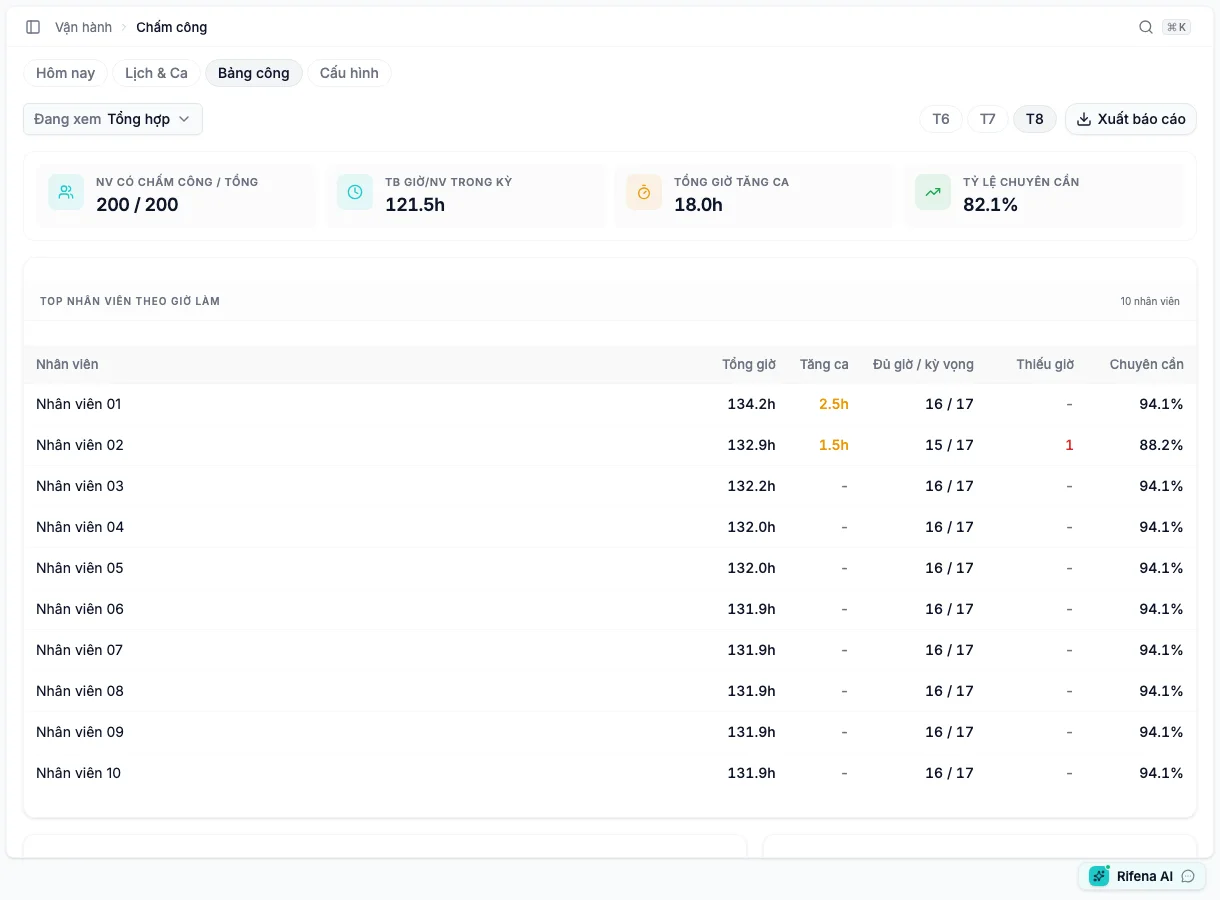
Summary
Choose one of the three displayed months to read server-calculated timesheet results. This view requires timesheet calculation access and currently includes:
- employees with timesheets, plus active headcount when the server supplies the denominator;
- average hours, total overtime and attendance based on full days versus expected days after shifts, leave and holidays;
- up to 10 employees with the highest hours, including overtime, full/undertime days and attendance rate;
- weekly hours with late, absent and overtime occurrence counts;
- undertime and high-overtime alerts for prioritising review.
Choose Export report for a CSV containing employee, total hours, overtime and night hours for the selected month. It is a reconciliation file, not an attendance-close command. The current Summary UI does not expose group/employee filters; use Timesheet or Overtime when investigating a specific person.
Correct one workday
- Select the correct period, person and date.
- Open the record and identify the missing event or incorrect shift match.
- Use the action currently shown, such as a correction or manual event.
- Enter the verified time and reason.
- Save, reopen the date and reconcile events and total hours.
When the period is Attendance closed, time-changing actions are locked. Do not use another period to bypass the state; follow the controlled reopen flow.
Configuration
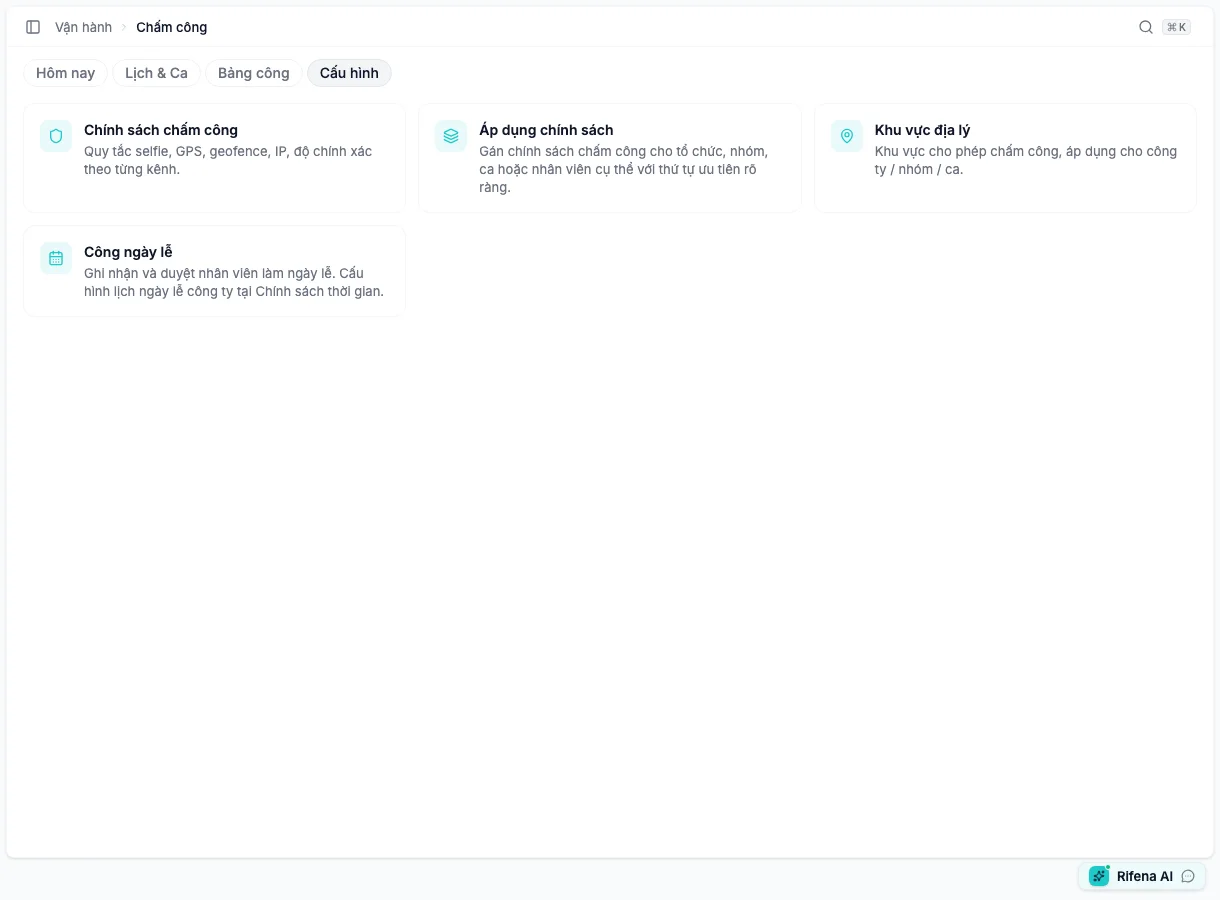
Open timekeeping Configuration →
Choose Configuration, then open one of four areas.
Clock policies
Manage requirements by Web, Mobile, Kiosk or another visible channel. A channel can require a photo, GPS, geofence, IP allowlist or location accuracy. Enable a requirement only after its supporting data is ready.
Policy assignments
Assign a policy to the organisation, groups, shifts, work arrangements or a specific employee. Verify the subject name and effective date after saving. More-specific assignments may take precedence, so review all assignments that can affect the test employee.
Geofences
Create the name, map centre, radius and scope. Verify the active state and policy link after saving. Do not use estimated coordinates for a blocking policy.
Holiday work
These are records of actual work on a configured holiday, not the company holiday calendar.
- Add or edit while the current state permits.
- An eligible reviewer may approve, reject or delete a pending record.
- Edit a rejected record and choose Save and resubmit.
- A creator cannot decide a record they created for themselves.
- Approved or payroll-consumed records are locked and require a controlled adjustment, not a history rewrite.
- When time off in lieu is required, use Record time off in lieu with a date after the workday and no later than the configured deadline.
The source calendar is under Operations → Time policies → Holidays.
Why is an action missing?
- No Record
- The account cannot create attendance events for other people, or the user is in another workspace.
- No Input
- The account cannot process attendance data, or that function is unavailable in the current state.
- No Approve
- The record is no longer pending, outside scope or was created by the same person.
- Cannot edit
- The period is closed, the record is approved/used by payroll, or the state is read-only.
- Redirected to 403
- This is an administration workspace; employees use attendance, schedule and overtime in the Employee portal.