Identity and SSO: two trust directions
The SSO screen contains two opposite trust directions. Identify the direction before entering any configuration.
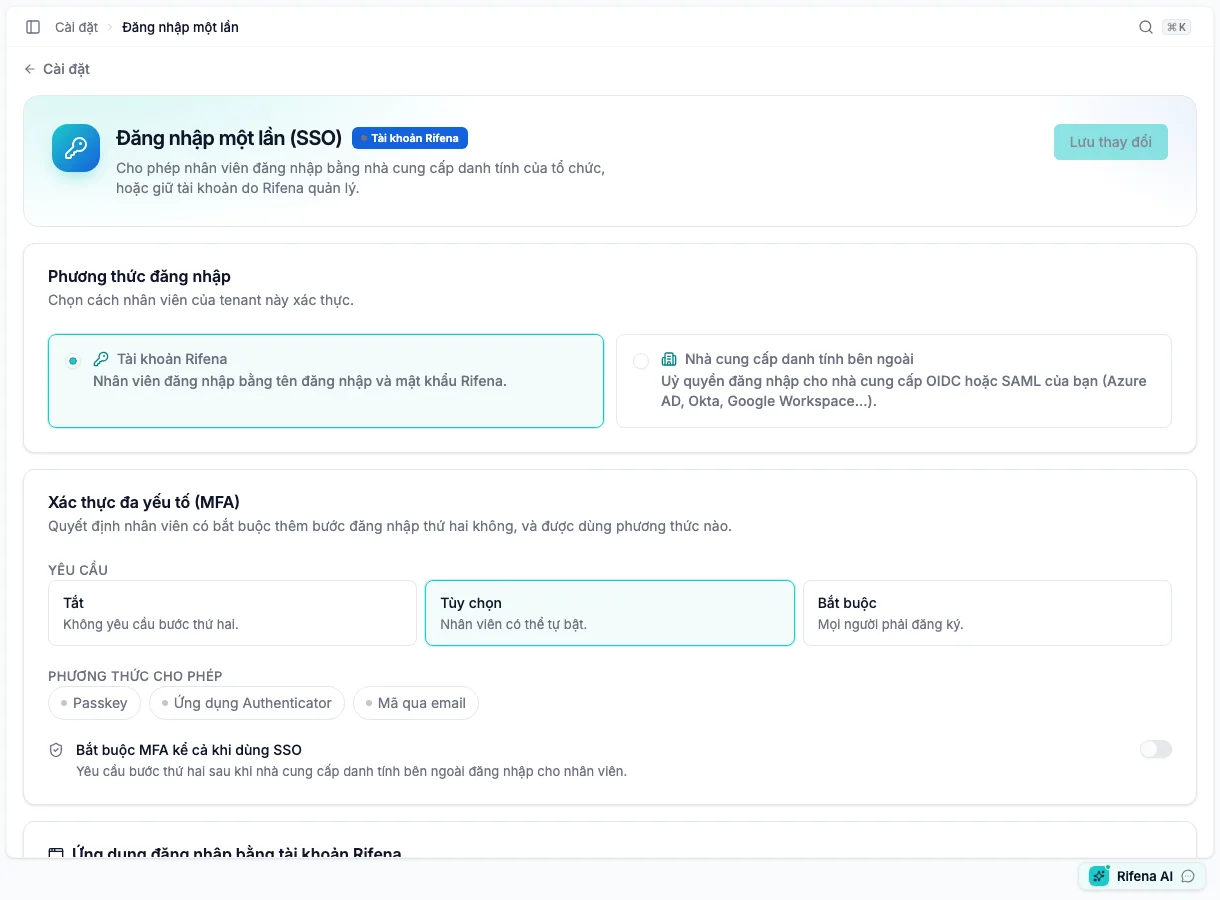
Direction 1: employees sign in to Rifena through an external provider
Open Single sign-on in Rifena →
The first part answers: How do this organisation’s employees authenticate to Rifena?
- Rifena accounts: username and password managed by Rifena.
- External identity provider: stored OpenID Connect or SAML 2.0 configuration for Azure AD, Okta, Google Workspace or equivalent.
For an external provider, configure Organisation key, button label, protocol and provider details. SAML metadata import can populate fields, but verify Entity ID, sign-in URL and certificates before saving.
Provisioning and MFA
- JIT provisioning can create a Rifena account on the first successful SSO sign-in when conditions are met.
- Allowed email domains limit linking/provisioning.
- MFA can be off, optional or required using passkey, authenticator app or email code.
- Require MFA for SSO adds a Rifena second factor after external sign-in.
Therefore do not enable Enforce SSO, remove the current administration sign-in path or announce external SSO as ready. Escalate connector activation to the identity platform team. Only test after the UI reports Active, using a test account that is not the only administrator.
Enforce SSO must remain unavailable without an active provider. Do not bypass that guardrail.
Direction 2: other apps use Rifena accounts
Apps signed in with Rifena accounts asks the opposite question: Which internal applications may trust identities issued by Rifena?
When signing keys are available, administrators can copy Rifena Entity ID and SSO/SLO URLs, register each app, choose NameID and attribute mapping, add app certificates, require encryption or signed requests, enable/disable or delete an app.
If the screen reports no IdP signing key, this direction is unavailable. Contact system administration; do not create an ad-hoc key or paste an unverified certificate.
- Disable app
- Stops sign-in while preserving configuration.
- Delete app
- Ends trust and removes configuration when the app is no longer allowed.
- Encrypt assertions
- Requires an app certificate; Rifena must fail instead of sending unencrypted data.
- Require signed requests
- Only when the app signs requests and its certificate is configured.
Secret handling
- Do not screenshot or send client secrets, private certificates, QR codes, setup keys or secret-bearing metadata through ordinary support channels.
- Leave a stored secret blank to keep it; only replace it during a controlled rotation.
- On a concurrent-change warning, reload and review the latest version instead of overwriting it.