Payroll periods and attendance lifecycle
Close a period only after its end date and after pending timesheets, leave, overtime and holiday-work items are resolved.
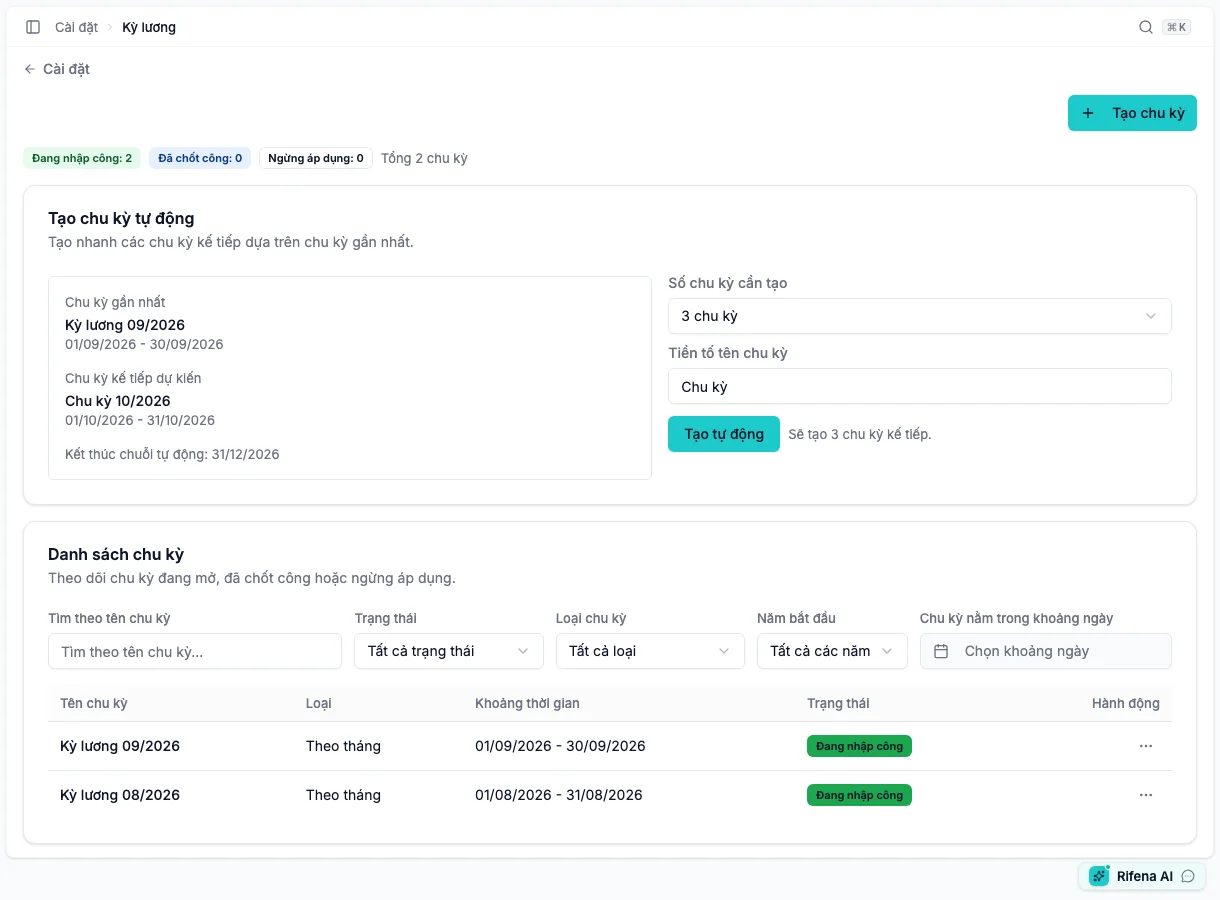
Create periods
Open Payroll periods in Rifena →
Create manually or generate 1, 2, 3, 6 or 12 periods after the latest period as offered. Types include weekly, biweekly, monthly and custom. Date ranges must not overlap. Verify name, start/end and type before confirmation.
A new period starts as Attendance open. Filter by year, date, type, state or name.
States and actions
- Attendance open
- Time data can be processed by authorised users; the primary action is Close attendance.
- Attendance closed
- Time data is locked; Reopen attendance appears only when completed payroll does not block it.
- Disabled
- The period is not used for new operations, while history remains.
- Edit
- Name may remain editable while definition is locked; type/dates require an eligible open state.
- Delete
- A closed period must be reopened first and references can still prevent deletion.
Close attendance
- Wait until the end date has passed.
- Review Timesheet, Overtime, Holiday work and related leave under Operations.
- Open the period readiness check.
- Resolve every listed blocker.
- Choose Close attendance and read impact.
- Verify Attendance closed.
Typical blockers are open/incomplete timesheets, pending leave, pending overtime and pending holiday work. Pending compliance violations do not automatically block closure; they remain in Compliance and do not cause wage deductions.
Reopen attendance
Only reopen after identifying the source error, affected people and payroll recovery plan.
- Open the Attendance closed period.
- Choose Reopen attendance.
- Review affected payroll runs.
- If only editable results exist, reopen and correct the source.
- Close again and recreate/recalculate affected payroll.
Rifena must block reopen when an approved or paid payroll result cannot safely be invalidated. Stop and use an approved adjustment process; do not rewrite history.
When an action is missing
- No Close attendance: wrong state, end date not passed or missing permission.
- No Reopen attendance: not closed, completed payroll blocks it or missing permission.
- Cannot delete: still closed or referenced.
- Cannot change dates/type: definition is locked.