Shift change / Cover: views and lifecycle
A request is complete only after the required cover and approval decisions are recorded, the final state is clear and the actual schedule reflects it.
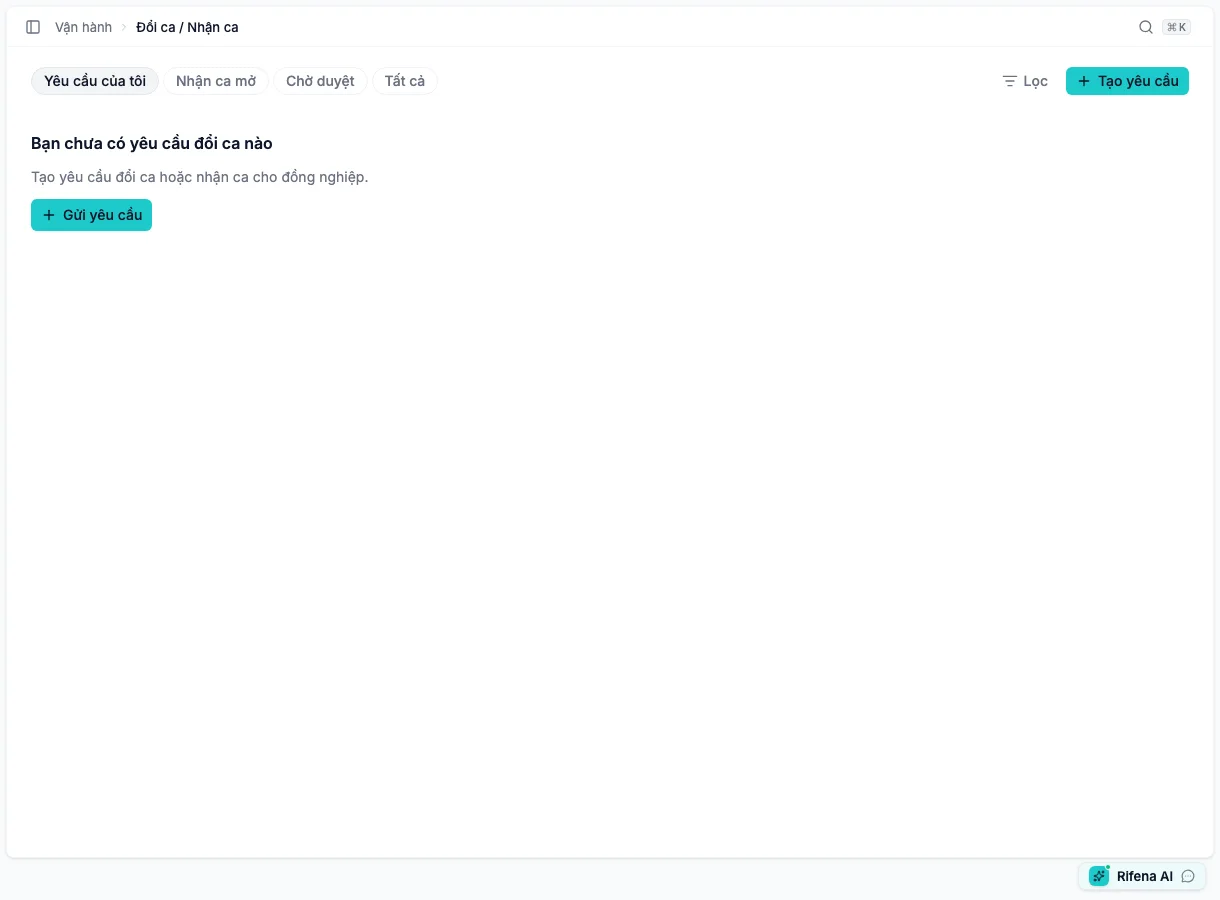
Choose the right view
Open Shift changes in Rifena →
Two request types
- Swap with a named person: the selected person accepts before the request proceeds when required.
- Find cover: the shift is opened to eligible colleagues; manager approval may still be required after someone claims it.
Verify the date, current shift, target shift/cover and participant before submitting. A note does not replace selecting the correct shift.
Actions by state
- Accept
- The proposed colleague agrees to participate; this is not the manager's final approval.
- Claim shift
- An eligible person claims an open shift; it disappears when filled, expired or conflicting.
- Approve / Reject
- Only for an authorised reviewer while the request is awaiting a decision in scope.
- Edit
- Only before the request passes the state that permits changes.
- Cancel
- An involved person, or an authorised manager, may stop a Pending/Accepted request without deleting its decision history.
- Revert
- For a completed request still eligible for reversal; read the schedule impact first.
States can include Pending, Accepted, Approved, target rejected, manager rejected, Cancelled, Expired and Reverted. Interpret an action together with the current state, not from role alone.
Verify the result
- Reopen the request and verify final state, actor and note.
- Open Operations → Timekeeping → Schedule & Shifts → Shift assignment on the relevant date.
- Confirm the actual worker owns the correct shift and the old assignment is not left behind.
- If the shift has started or time events exist, review attendance too.
When an action is missing
- Pending approval is disabled: the account has no approval permission.
- No Claim shift: the shift is filled, expired, ineligible or conflicts.
- No Cancel: the request is not Pending/Accepted, or the account is neither involved nor allowed to manage shift-change requests.
- Empty list: clear state/date filters, then verify group scope.
See Timekeeping: Schedule & Shifts and Time and attendance issues.